This is the full account, written to be read in one sitting. Every section links to a detailed guide if you want to go deeper on one thing.
The release at a glance
Area | What changed |
|---|---|
Order types | Stop market, stop limit, TWAP, iceberg, trailing stop, OCO, OTO, scaled |
Exits | Up to 5 take profit and 5 stop loss levels per position, plus break-even, stop-win and trailing strategies |
Risk | Estimated liquidation price before you confirm · P/L over time on any position · full instrument details |
Leverage | Editable in place on an open position or a pending order |
Workspace | Rebuilt menu · resizable chart · Quick Trading widget on Spot · trade quantity memory |
Wallet | Colour-coding · filter by wallet · CSV and PDF export |
Developers | API & Docs tab, per-key permissions, IP restrictions, HMAC |
Design | New website · new sign-in page · Arena, Launchpad and $OUIX refreshed · Zero Fees badge |
Partners | Private Arenas, code-gated branded competitions |
Behaviour | Margin call now informational · price-distance order checks · TP/SL spread guard · automatic close retry · browsing without an account |
Eight new order types
Before 4.35 the order type menu had two entries: Market and Limit. It now has ten. The eight new ones fall into two groups, and the distinction is worth getting right because it decides which tab your order appears in.
Trigger orders, stop market and stop limit, sit dormant until the market reaches a price you set, then fire. A stop market becomes a market order and prioritises getting you filled. A stop limit becomes a limit order at a second price you choose, and prioritises the price you get. You cannot have both: stop market can cost you price, stop limit can cost you the exit. Which one belongs on a stop loss is usually stop market, because a stop that does not fill during a fast move is a stop that did not work.
Algorithmic orders, TWAP, iceberg, trailing stop, OCO, OTO and scaled, do something more involved with your size or your exits. They do not appear in Open Positions while they run. They live in the new Algo tab at the bottom of the screen, where you can watch progress, pause and cancel.
Working large size
Three of the new types exist because one large fill takes more of the available liquidity than a small one, and pays for it in slippage.
A TWAP order splits your quantity into slices and executes them evenly across a window you choose, from five minutes to twenty-four hours. It is clock-driven: the next slice fires on schedule whether or not the market has moved. You give up immediacy and get a better average.
An iceberg order works a large order through in fixed-size slices, each released as the previous one fills. It is fill-driven rather than clock-driven, which means it can sit unfinished indefinitely if the market moves away from your price.
A scaled order places several limit orders across a price range, so you build a position as the market moves through a zone rather than betting on one exact level. The ticket shows you a preview table with every order and your estimated average entry before you confirm, read it, because a range that looks aggressive often produces an average barely different from a market order.
Worth being precise about one thing here, because it is Ouinex's main structural difference. The platform runs a no-CLOB execution model: there is an order book, and traders can see it, you see each other's resting orders. What market makers cannot do is read it. On a conventional central limit order book a market maker sees the full ledger and can position against the size sitting in it; on Ouinex they have no such view. So splitting a large order still does a job here, it keeps your size from announcing itself to the traders who can see the book, while the execution model handles the counterparty you cannot see.
Managing exits
An OCO order, one cancels the other, places a take profit and a stop loss together, and whichever fills first cancels the other automatically. It removes an entire category of mistake: the leftover order that fires into an empty account and opens a fresh position you never intended.
An OTO order, one triggers the other, links an entry to an exit, so the moment your entry fills, your stop or target is submitted for you. This matters most on a limit entry that might fill at three in the morning, when the alternative is a position sitting unprotected until you notice.
A trailing stop follows the market while your trade is working and stays put when it is not. You set a callback distance in USD or a callback rate as a percentage, and optionally an activation price so the trail only engages once the trade is genuinely in front. The one rule: it never moves backwards.
The headline feature: five take profits and five stop losses
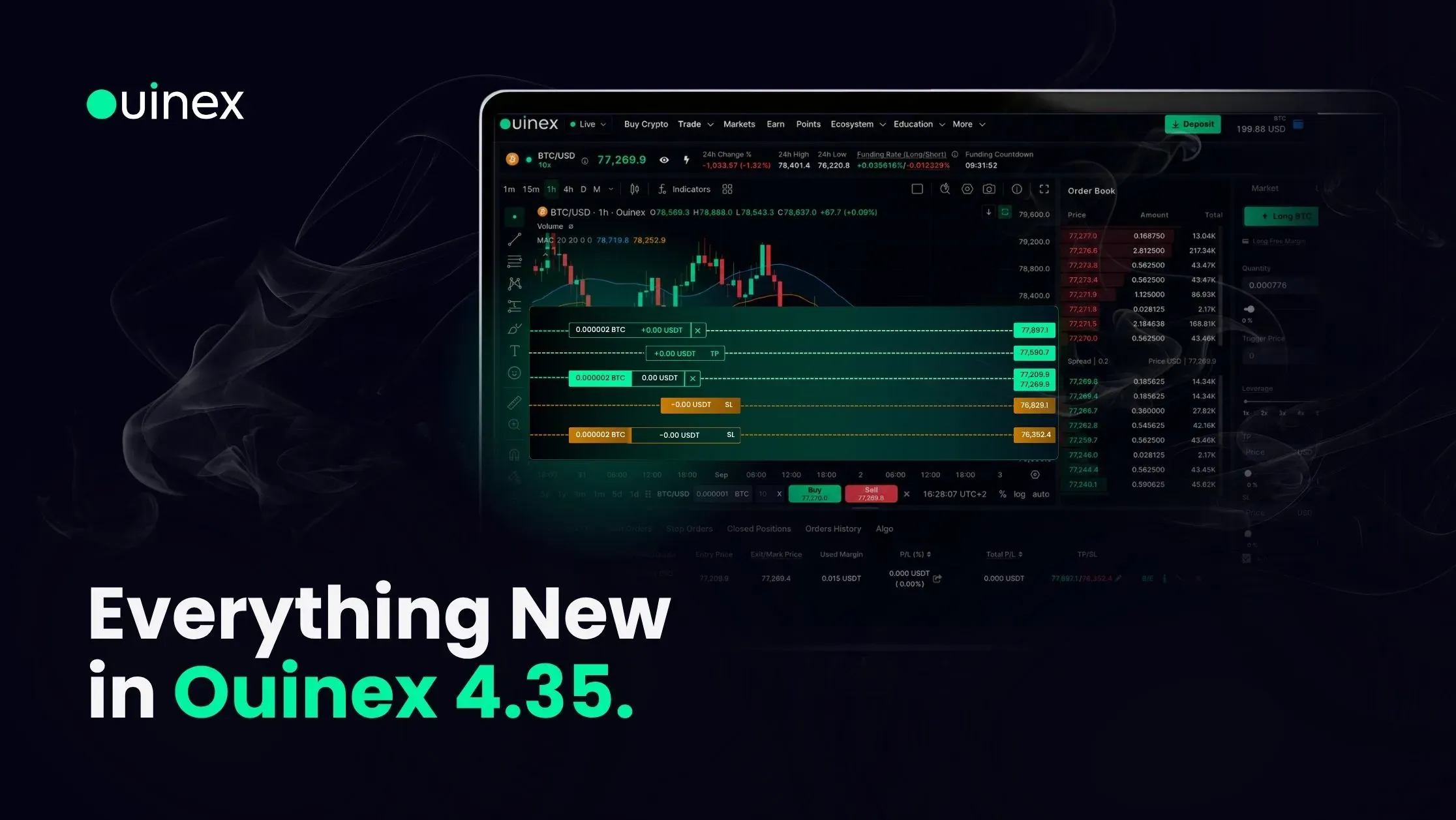
The biggest single change is multi take profit and stop loss. A position could previously carry one of each. It can now carry up to five of each, every level with its own price and its own quantity, so you can close half at your first target, a quarter at the second, and let the rest run.
You find it behind Advanced Config in the TP/SL section of the trade form, with a Single/Multi toggle in the top right. The Remaining line tells you how much of your position is still uncovered as you build the ladder.
Enable Advanced SL and you can attach an automated stop strategy instead of a fixed level:
- Break-even moves your stop to your entry price once a trigger you set is reached.
- Stop-win moves it to a level you choose, locking in a minimum result rather than just protecting capital.
- Trailing stop follows the market, as above.
Two badges appear on the position afterwards. A yellow warning means your levels do not cover 100% of the position, hover for the exact figures. A shield means an advanced stop strategy is active.
Worth being honest about the trade-off: scaling out reduces your average winner as well as your variance. If your first target is where most of the move usually ends, a ladder is clearly better. If your trades routinely run three times further, a ladder has been quietly cutting your best ones in half. Look at your own closed trades before deciding.
Seeing your risk before you take it
Three changes here, and together they are the most useful part of the release for anyone trading on margin.
Estimated liquidation price now appears in the order summary before you confirm, and updates live as you change quantity or leverage. It is calculated across your entire wallet, not the order in isolation, so it accounts for margin already committed elsewhere. Drag the leverage slider and watch it move. That is a more concrete lesson in what leverage does than any explanation of margin ratios. The question to ask is whether that price sits inside the range the instrument moves in normally. If it does, the position is too large.
Position profit and loss gained a chart. Click the info icon on any open position for a P/L over time view across 1, 7 or 14 days, your entry execution record, and, the useful part, your trading fee and funding fee as separate lines. On anything held more than a day, that separation tells you what the trade did versus what holding it cost.
Instrument details are one click from the chart via the eye icon: leverage range for that specific market, minimum and maximum quantity, price step size, live trading schedule, and your own fee position. Every constraint that can make an order behave unexpectedly, on one page.
And leverage is now editable in place on an open position or a pending order, no more cancelling and re-placing. Note what it does and does not do: it changes the margin behind a position, not the position's size or its profit per point. Raising leverage on a losing position does not reduce your exposure; it moves your liquidation price closer to a market already coming toward you.
A faster workspace
The navigation has been rebuilt. Points, the SocialFi programme, moved up to the top level. A new Education menu gathers the Academy, Blog, Glossary and FAQ in one place. And the platform and the website are now linked in both directions, which is a small change with a real effect: the reference material always existed, and the people who needed it were on the platform and rarely saw it.
The Live/Demo switch sits first in the menu, deliberately. It is the setting with the highest cost of being wrong.
The chart is resizable via a drag handle below it, down for analysis, up to keep your positions and the Algo tab in view. Keep that panel visible whenever an algorithmic order is running, because a stalled algo makes no noise.
The Quick Trading widget is now on Spot as well as Derivatives: a draggable panel that lets you buy and sell without leaving a full-screen chart. It is a market-order tool, so keep it for trades you have already decided on.
And trade quantity memory pre-fills the last size you traded on each instrument, stored separately per instrument. Check it against your current account rather than accepting it by reflex.
Your wallet, and records you can actually use
The wallet gained colour-coding for individual wallets, filtering of transactions and transfers by wallet, and, the change that matters most, export. All transactions and transfers as CSV, and your full wallet statement as a PDF.
That last one changes what the wallet is for. It stops being somewhere you check a balance and becomes somewhere you can reconcile from, which matters for tax records, for your own trading records, and for working out what a month actually did.
One caution: transferring funds out of a wallet reduces the margin supporting any open positions in it, which moves their liquidation prices closer to the market. Check open positions before moving margin.
Building on Ouinex
Ecosystem → API & Docs is a new tab that takes you straight to API key management. You can set an expiry date, restrict a key to specific IP addresses, enable HMAC, and, most importantly, grant permissions individually across Accounts and Balances, Wallets, Conversions and Payments, and more.
The rule worth following: one key per use case, minimum permissions each. A key that cannot trade cannot be used to trade. The full reference, including WebSocket subscriptions, is at api.ouinex.com.
A new look
The website has been rebuilt around Every Market. One Exchange., crypto spot and perpetuals alongside forex, commodities, indices and stocks, from a single multi-asset account with crypto as collateral. Everything practical is two clicks from anywhere: trading hours, fees, algo trading, the Academy, the Glossary and the FAQ.
The registration and sign-in page now shows every market available from one account before you commit to an account, plus direct links to the community.
The Arena, Launchpad and $OUIX pages have been redesigned to match the rest of the platform. Same features, one consistent surface.
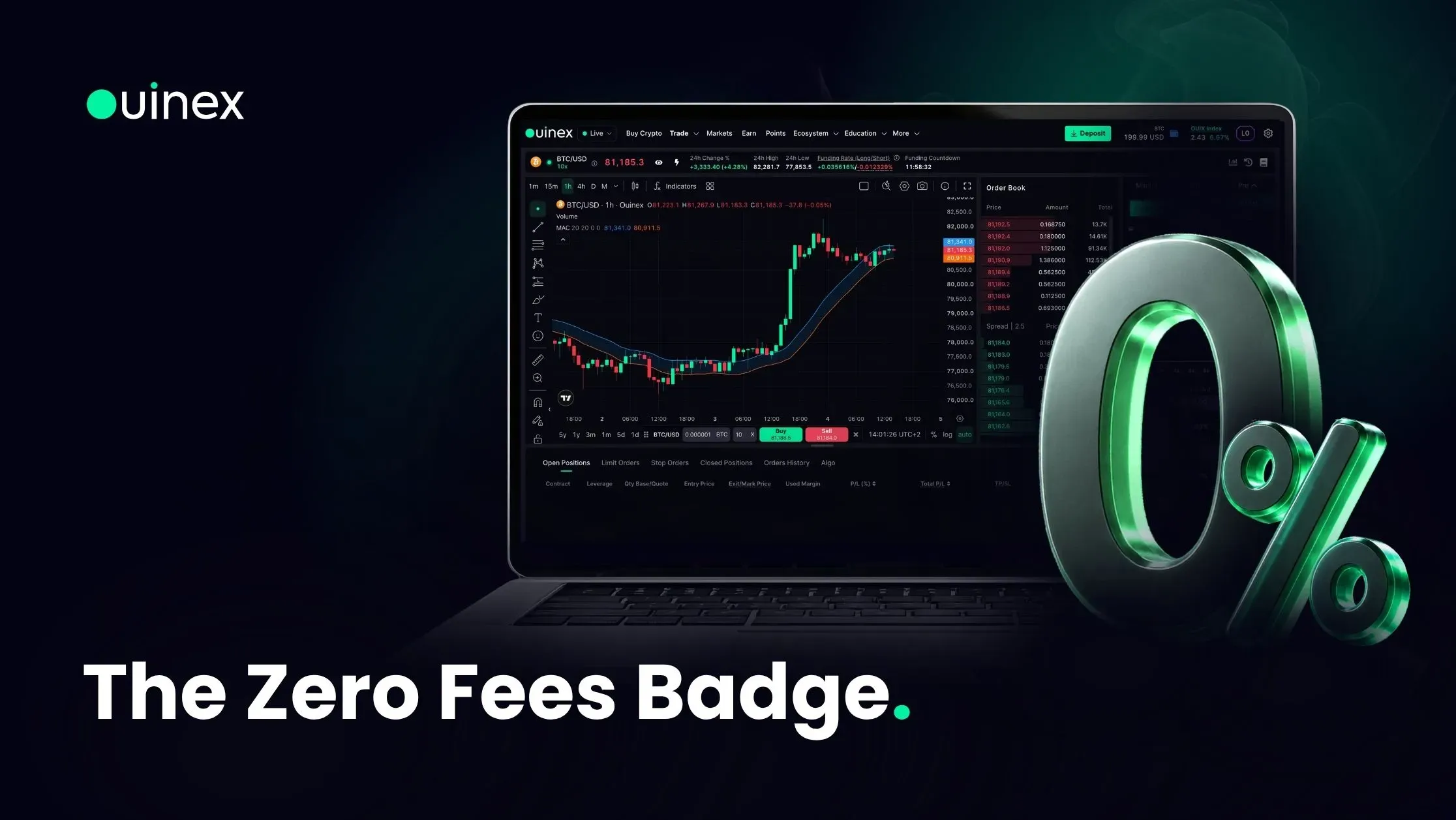
And a green Zero Fees badge now marks instruments with no commission: forex, stock indices and commodities, where you pay the spread and nothing else. It does not appear on crypto or stocks, which carry a commission, and the badge is more useful for being accurate than for being everywhere. All of these are traded as CFDs: you take exposure to the price, you do not own the underlying.
For communities and partners: Private Arenas
Private Arenas are trading competitions only your community can enter. You get a branded arena and a single access code to share; we build and run it.
Dates, duration and assets are configured per campaign, including an arena scoped to a single token, which makes a launch-day push with a partner project genuinely practical. Prize pools scale with turnout: reward tiers are set against the number of qualified traders, and a live progress bar shows the current pool and how many more are needed to unlock the next one. A qualified trader is a member who has placed at least 20 trades.
Every arena runs through the same anti-abuse framework: a 20-trade minimum to appear on the leaderboard, wash-trading detection at the end of the event, and manual review of winners before any payout.
Behaviour changes worth knowing about
Small individually, and each one answers a question that would otherwise become a support ticket.
Margin call is now informational. Being in margin call no longer blocks a new trade by itself. What blocks one is reaching zero free margin. Closing or reducing a position is always allowed, whatever state the account is in. You can now see a margin call warning and still trade, or see free margin at zero without being in margin call. Both are expected.
Orders can be rejected on price. An order cannot sit more than roughly 30% from the market, or too close to it. Both limits are per instrument. It is a safety control, not a fault, adjust the price and resubmit.
Take profit and stop loss cannot sit inside the spread. The confirm button is now disabled with an explanation, instead of the order being submitted and then rejected.
Closing retries automatically. If there is not enough liquidity to close in one attempt, Ouinex retries in the background, up to 50 times. No need to keep clicking.
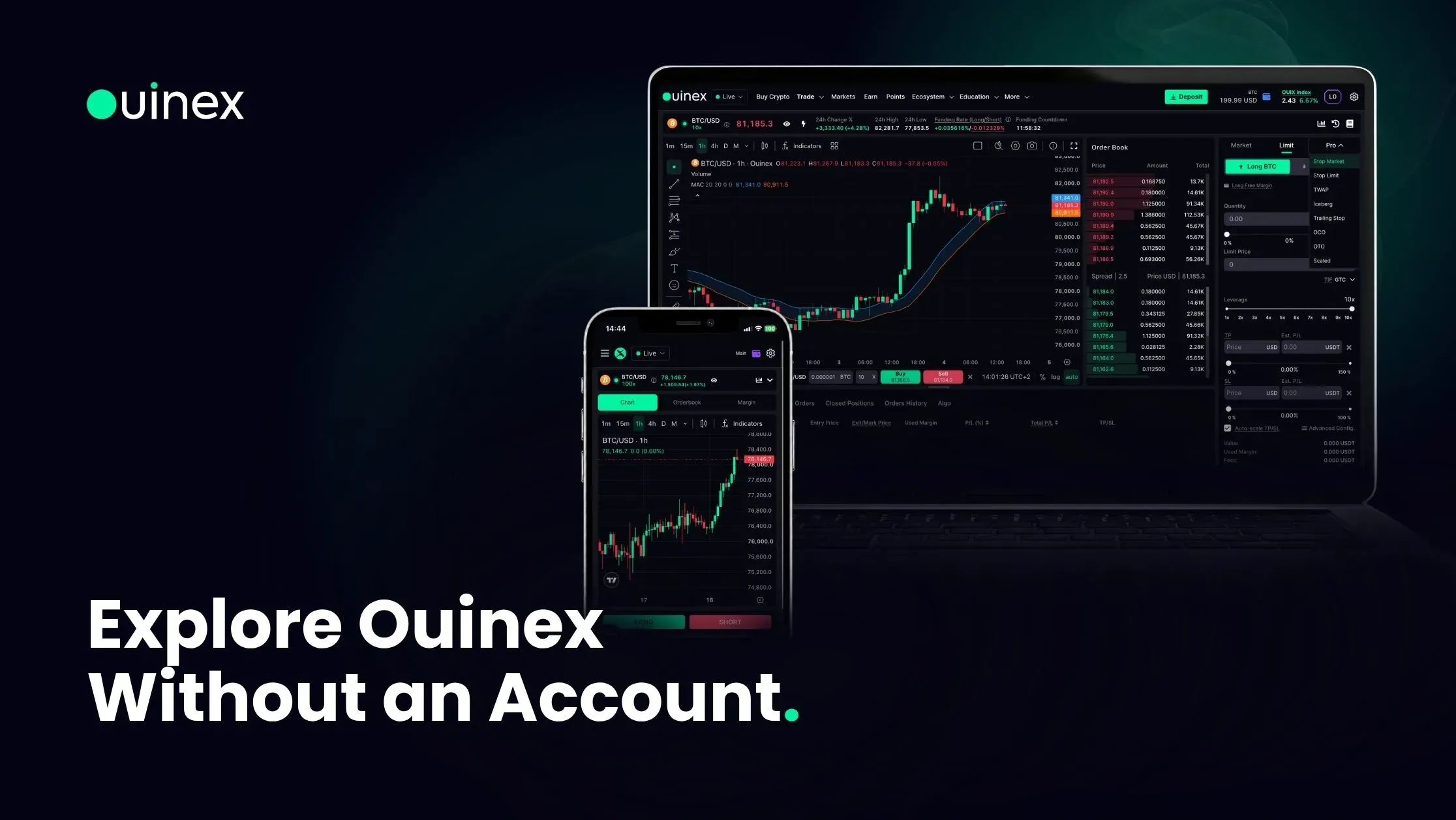
You can browse without an account. Spot, Derivatives, Markets, the Performance tab and Referrals no longer sit behind a login wall.
Where to start
If you trade derivatives: multi take profit and stop loss, then the estimated liquidation price. Those two change how a trade is planned more than anything else here.
If you trade size: TWAP, iceberg and scaled orders.
If you are new to Ouinex: the new menu, then have a look round without signing up.
If you run a community: Private Arenas.