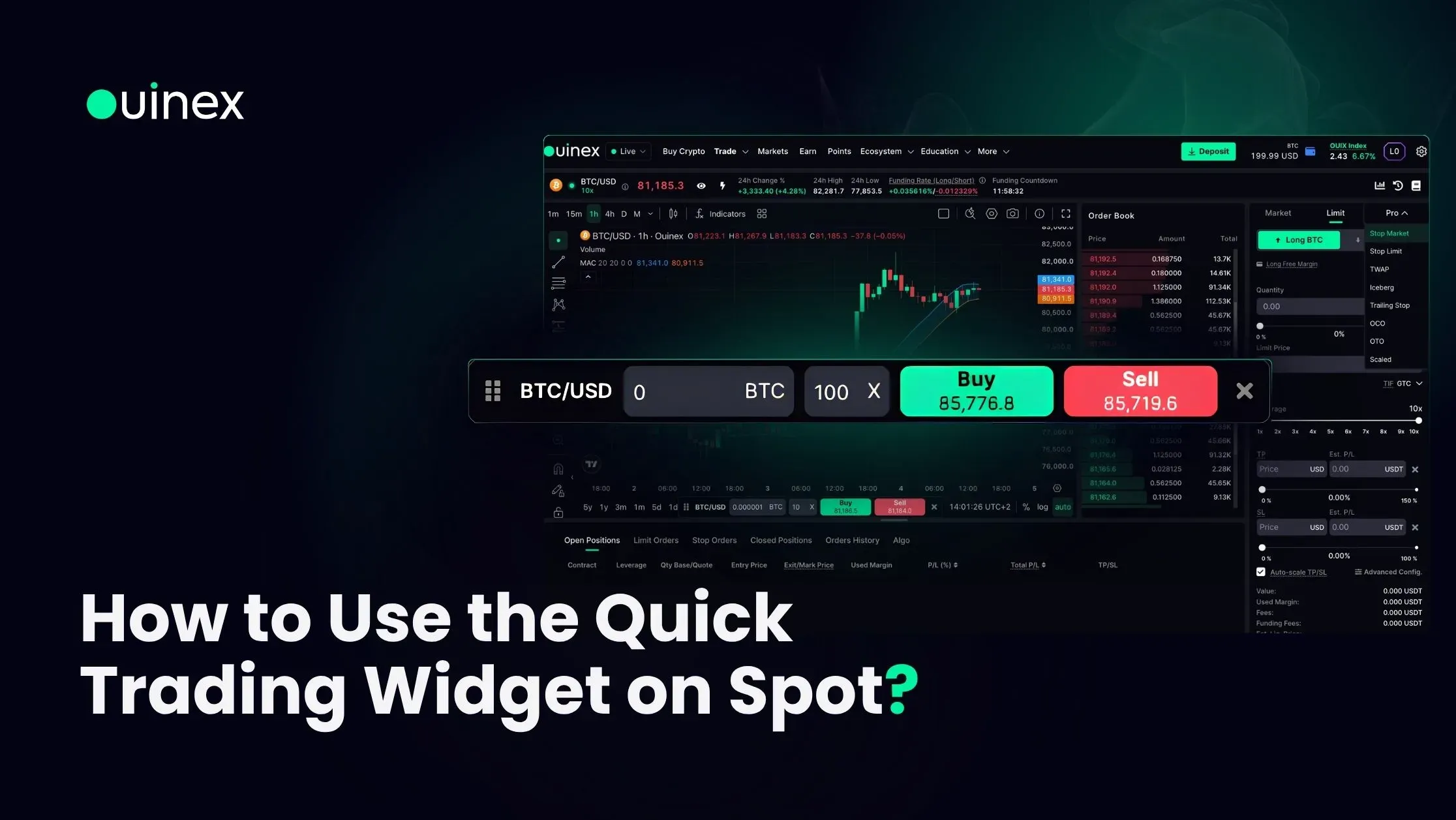
Go to any Spot market and look for the lightning icon. Click it and a small panel appears. It is draggable, so you can put it wherever it does not cover the part of the chart you are watching. Enter an amount, then click Buy or Sell at the live price shown on the button.
Watch the walkthrough: How to Use the Quick Trading Widget on Spot on Ouinex
What it is actually for
The widget solves a specific, narrow problem: the trade form and the chart compete for the same screen.
If you work from a full-screen chart, several indicators, drawings you are actively using, a timeframe you need space to read, then placing an order means collapsing the view, finding the form, entering the trade, and rebuilding the layout. By the time you are back, the setup you were watching has moved.
The widget removes that round trip. The chart stays as it is and the order goes through from a panel floating over it.
What it is not for
It is a market-order tool. Enter an amount, click the price, and the order executes at whatever is available.
That makes it right for one kind of decision and wrong for another. It is right when you have already decided. You were waiting for a level, the level arrived, and the delay of switching views is the only thing between you and the trade. It is wrong as a general-purpose order form, because it deliberately omits everything the full form gives you: order type, limit price, and exits attached at entry.
The risk is not the widget. It is what a fast path encourages. An interface that makes trading quicker makes overtrading quicker too, and clicking a live price on a floating panel is a materially lower-friction action than filling in an order form. If you find yourself using it because it is there rather than because a plan called for it, that is worth noticing.
For anything you want to plan rather than execute immediately, use the full trade form, where you can set a stop market or stop limit entry and attach take profit and stop loss levels at the same time.
Availability
Three conditions, all of which have to be true:
- Desktop. The widget is not available on mobile.
- Logged in. It does not appear for guests, even now that much of the platform is browsable without an account.
- Actively tradable instruments only. If a market is closed or an instrument is not currently tradable, the widget will not be available for it.
If the lightning icon is missing, one of those three is the reason.
FAQ
Where is the Quick Trading widget on Ouinex? On the chart of any Spot or Derivatives market, look for the lightning icon. Click it to open a small draggable panel with Buy and Sell buttons at the live price.
Can I use the Quick Trading widget on mobile? No. It is a desktop feature, available when you are logged in and only for instruments that are actively tradable.
Can I set a limit order from the Quick Trading widget? No. The widget places orders at the live price shown on the button. For limit orders, trigger orders, or orders with take profit and stop loss attached, use the full trade form.
Why can I not see the lightning icon? Either you are on mobile, not logged in, or the instrument is not currently tradable, for example because its market is closed. The instrument details page shows the trading schedule for that market.
The bottom line
The widget is a shortcut for trades you have already decided on, and it earns its place if you work from a full-screen chart. Keep it for that. Anything that needs an order type, a price you choose, or exits attached at entry belongs in the full trade form. It is live now on Spot as well as Derivatives, see the full 4.35 changelog for the rest of the release.