The last two are the ones that change what the wallet is for. Until now it was a place to see your balance. With exportable records it becomes a place you can reconcile from, which matters if you file tax returns, keep your own trading records, or have ever tried to work out what a month actually did.
Watch the walkthrough: How to Use the New Wallet Features on Ouinex
The wallet window
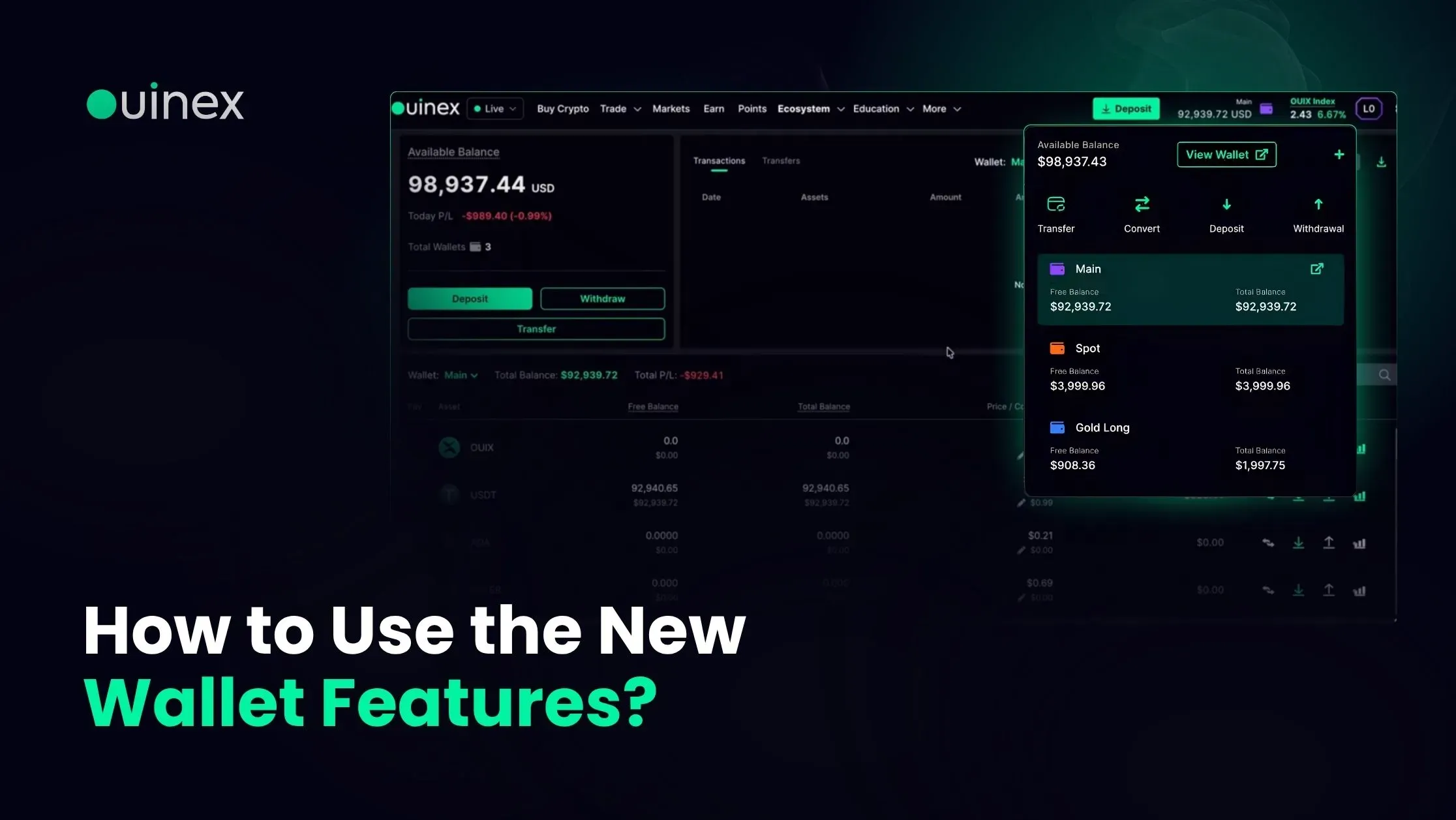
Click the wallet icon in the menu to open the wallet window. It shows your available balance and all your wallets at a glance, and every common action is available from it: transfer between wallets, convert crypto, buy crypto, deposit, and withdraw.
The plus icon creates a new wallet. View Wallet opens the full wallet page.
Wallet colours
You can assign a colour to each wallet. Your Main wallet is purple by default.
To change one, click the edit button on a wallet, choose a colour, and click Save Changes.
This sounds cosmetic and is not, if you run more than two or three wallets. The usual reason people hold separate wallets is to keep separate things separate, strategy capital apart from long-term holdings, one instrument's margin apart from another's, a competition wallet apart from everything else. That separation only works if you can tell them apart at speed, and a list of similarly named wallets does not let you.
If you keep a wallet for a specific purpose where transferring out of it by mistake would be costly, give it a colour you would notice.
Filtering by wallet
The wallet page now filters Transactions and Transfers by wallet. Select a wallet and you see only what happened on it. You can also view everything held in a specific wallet by selecting it from the list.
This is what makes multiple wallets genuinely usable rather than just possible. A single combined history across six wallets is a list you scroll; a filtered history is a record you can read.
Exporting your records
Two exports, from the wallet page:
CSV, all your transactions and transfers, as data. This is the one for spreadsheets, for your own analysis, and for anything that needs to be sorted or summed.
PDF, your full wallet statement, as a document. This is the one for records you need to keep or hand to someone else.
Worth doing periodically rather than only when you need it. Exporting a year of activity in one go at the point you urgently need it is a worse experience than exporting each month as it closes, and the CSV is the raw material for working out what your trading actually cost, including the funding and fee lines that do not show up in a profit and loss figure on the screen.
Transfers
Transfer between wallets directly from either the wallet window or the wallet page, using the Transfer button.
One thing to keep in mind if you trade on margin: moving funds out of a wallet reduces the margin supporting any open positions in it, which moves their estimated liquidation prices closer to the market. The transfer is instant; the consequence is not always obvious. Check open positions in a wallet before transferring out of it.
FAQ
How do I change the colour of a wallet on Ouinex? Click the edit button on the wallet in the wallet window, choose a colour, and click Save Changes. Your Main wallet is purple by default.
Can I download my Ouinex transaction history? Yes. From the wallet page you can download all transactions and transfers as a CSV file, and your full wallet statement as a PDF.
How do I see the transactions for one specific wallet? Use the wallet filter on the Transactions and Transfers lists on the wallet page. Select the wallet and the lists show only that wallet's activity. You can also select a wallet to see everything held in it.
How do I transfer funds between my Ouinex wallets? Use the Transfer button, available from both the wallet window and the wallet page. Note that moving funds out of a wallet with open positions reduces the margin supporting them.
How do I create a new wallet? Click the plus icon in the wallet window.
The bottom line
Colours and filters make multiple wallets practical to run; the CSV and PDF exports make the wallet something you can reconcile from rather than just look at. Export regularly rather than retrospectively, colour the wallets you would not want to transfer out of by accident, and check open positions before moving margin. If you are new to funding an account, start with how to make a deposit.