How to Trade from the Chart (TradingView Integration)
This How to guide is about how to trade directly from the chart thanks to the TradingView integration. This feature is available on both Spot and Derivatives.
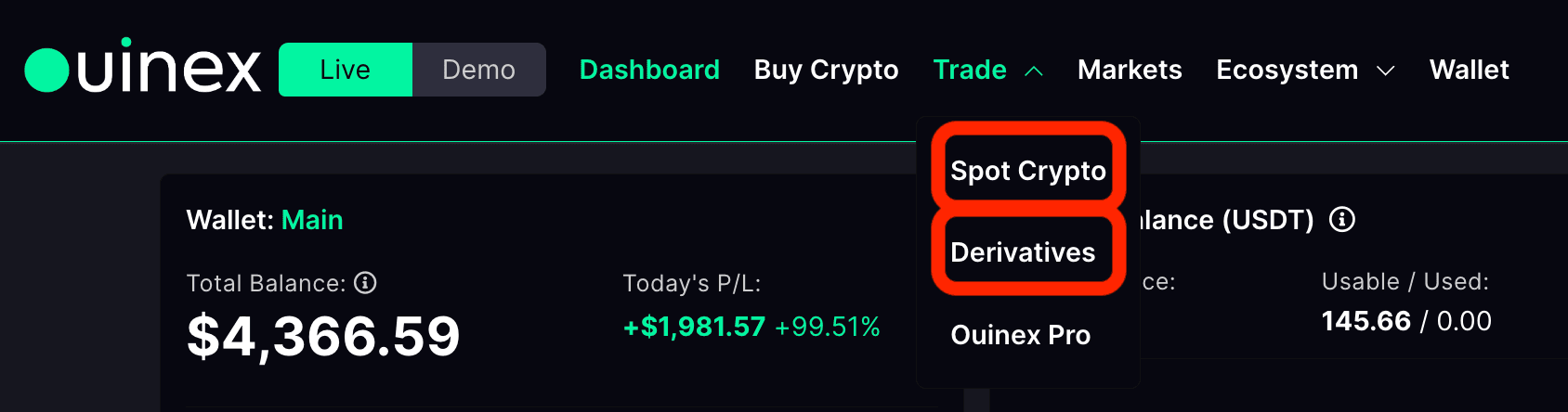
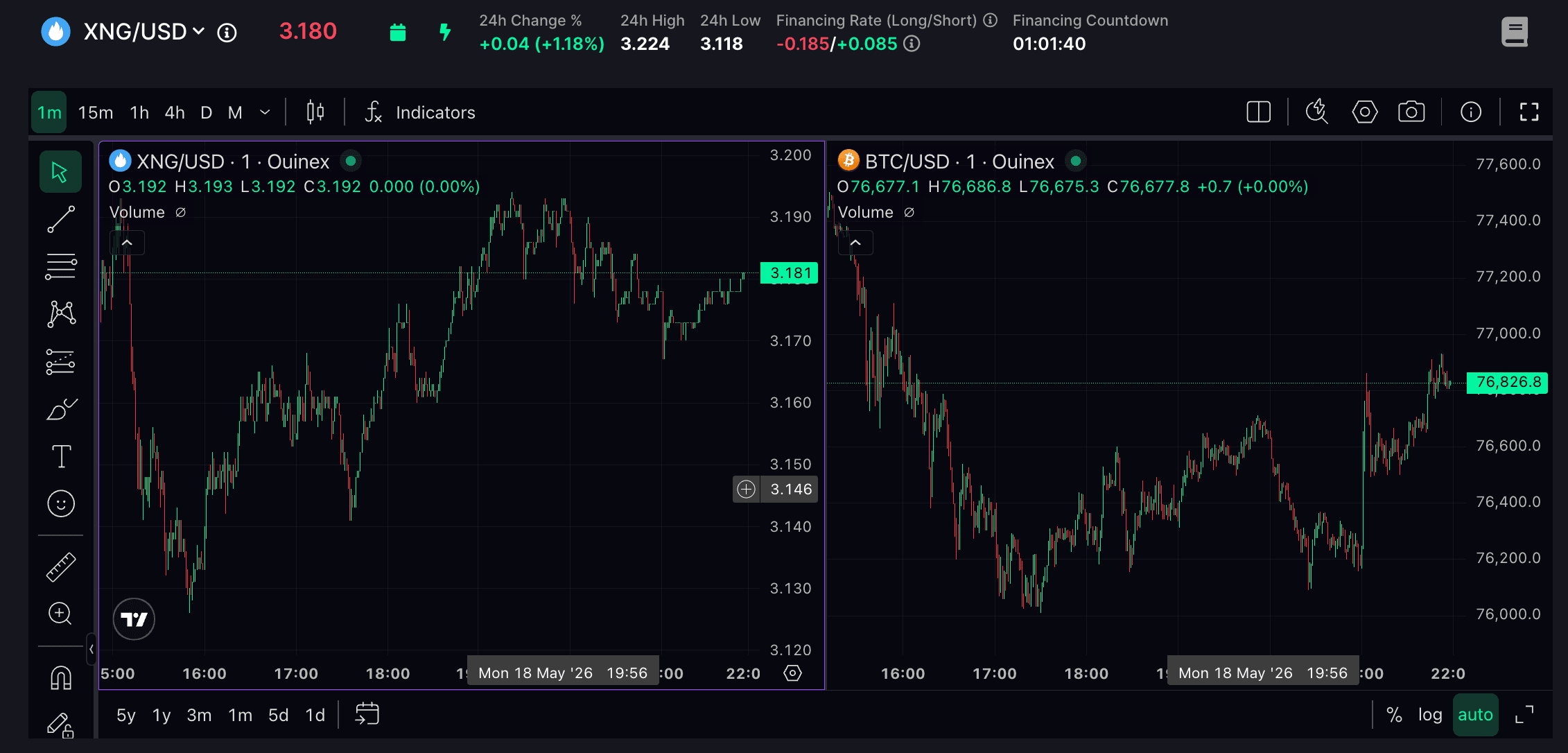
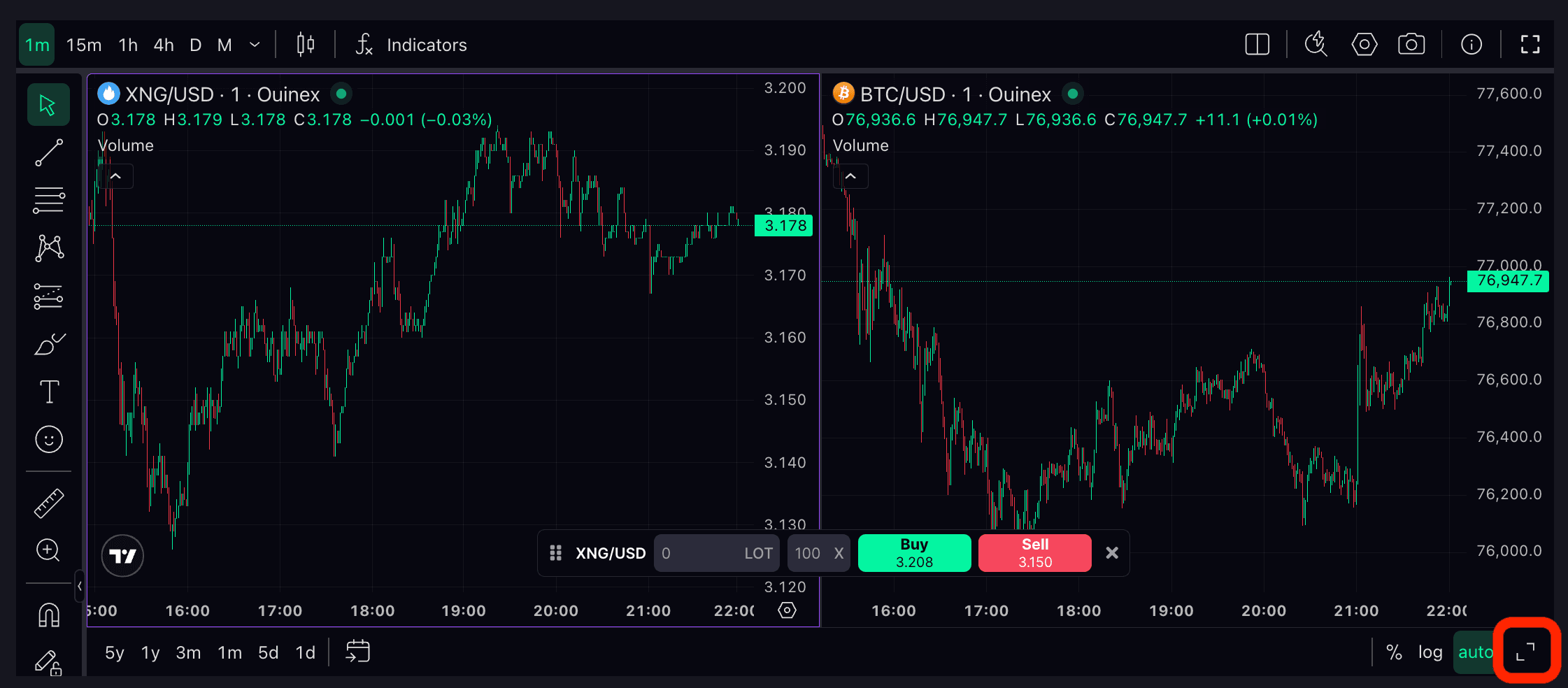
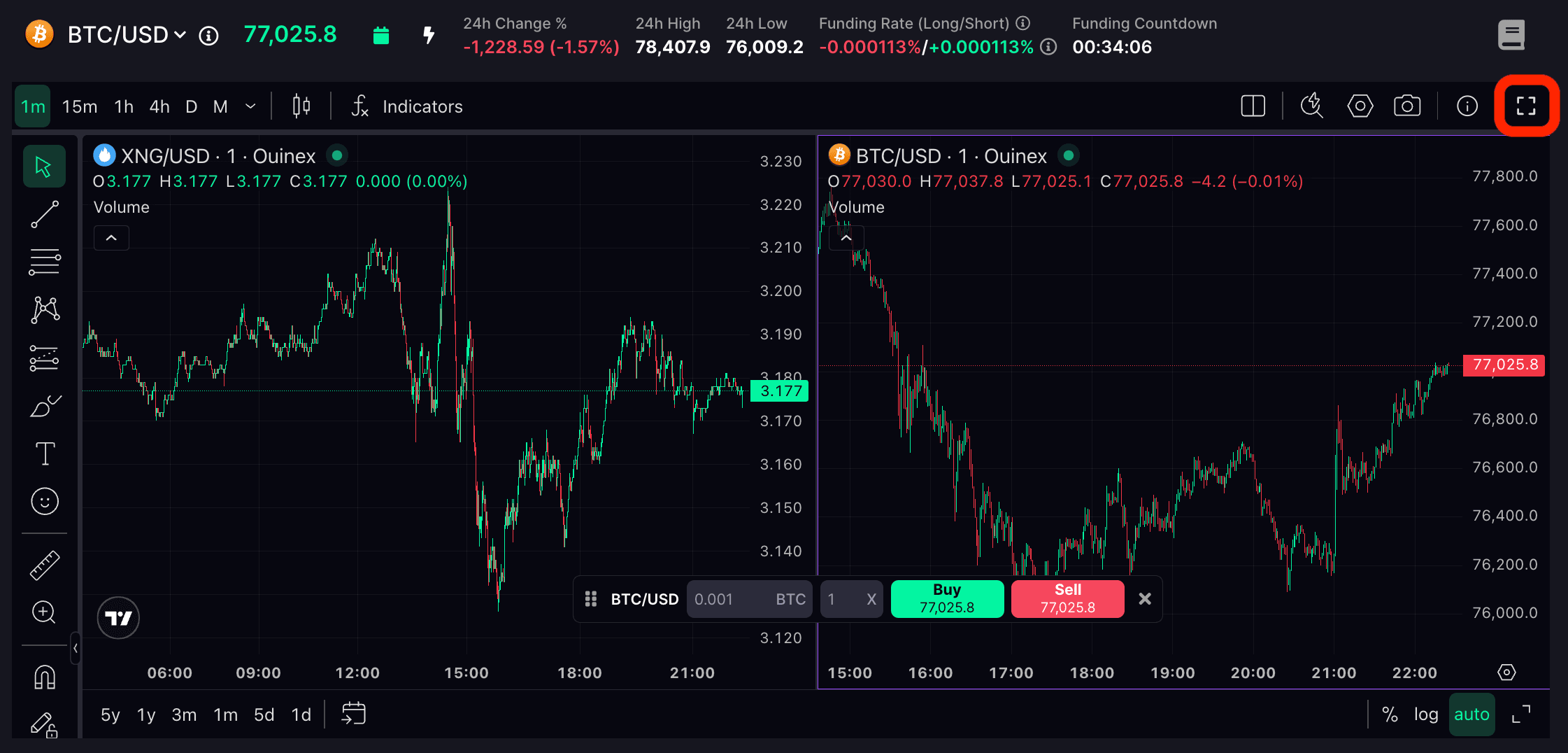
First, you can use the multi-chart view. You choose how many charts you want to display.
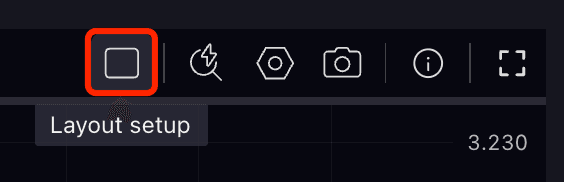
For example, I select 2 charts, and I can change the asset on each one.
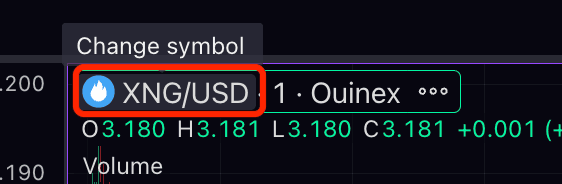
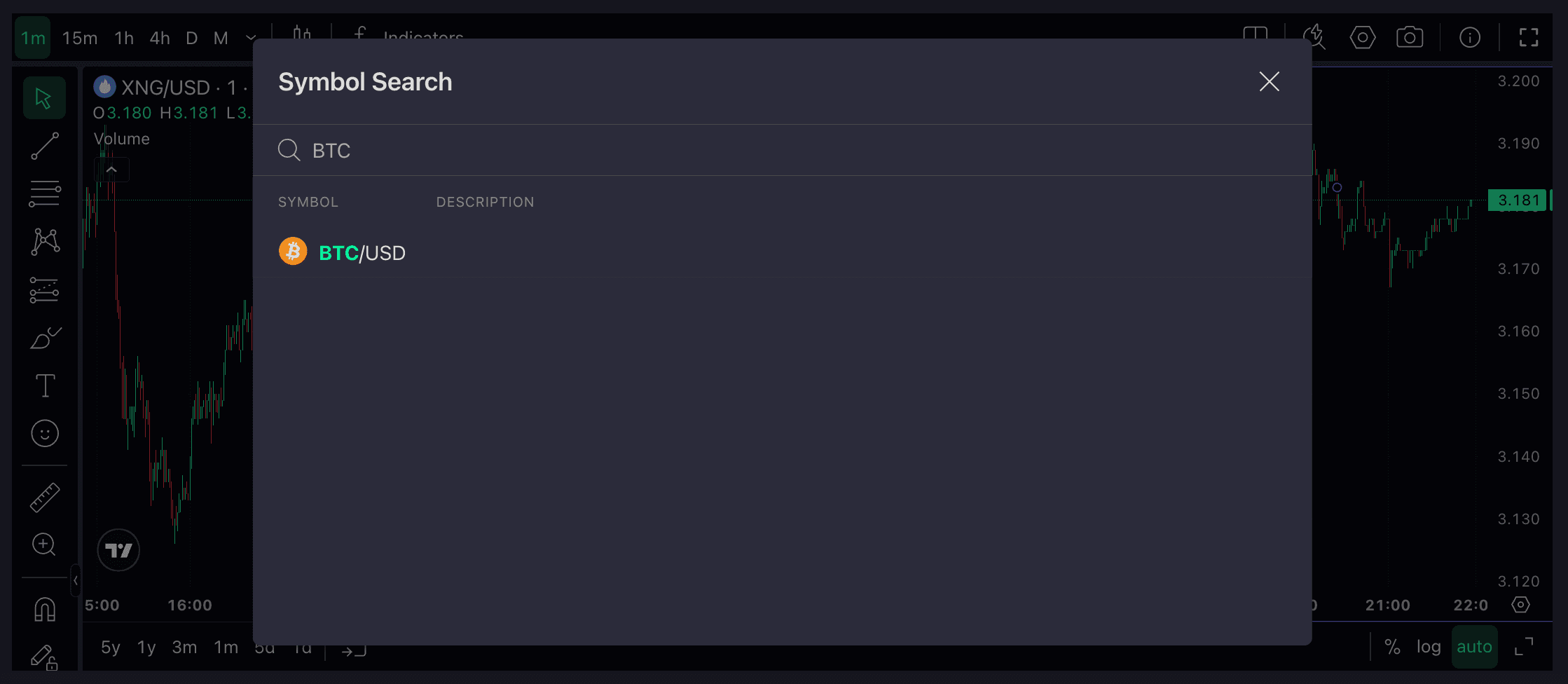
When you click on a chart, it gets highlighted, and the panel on the right automatically updates to follow the selected chart.
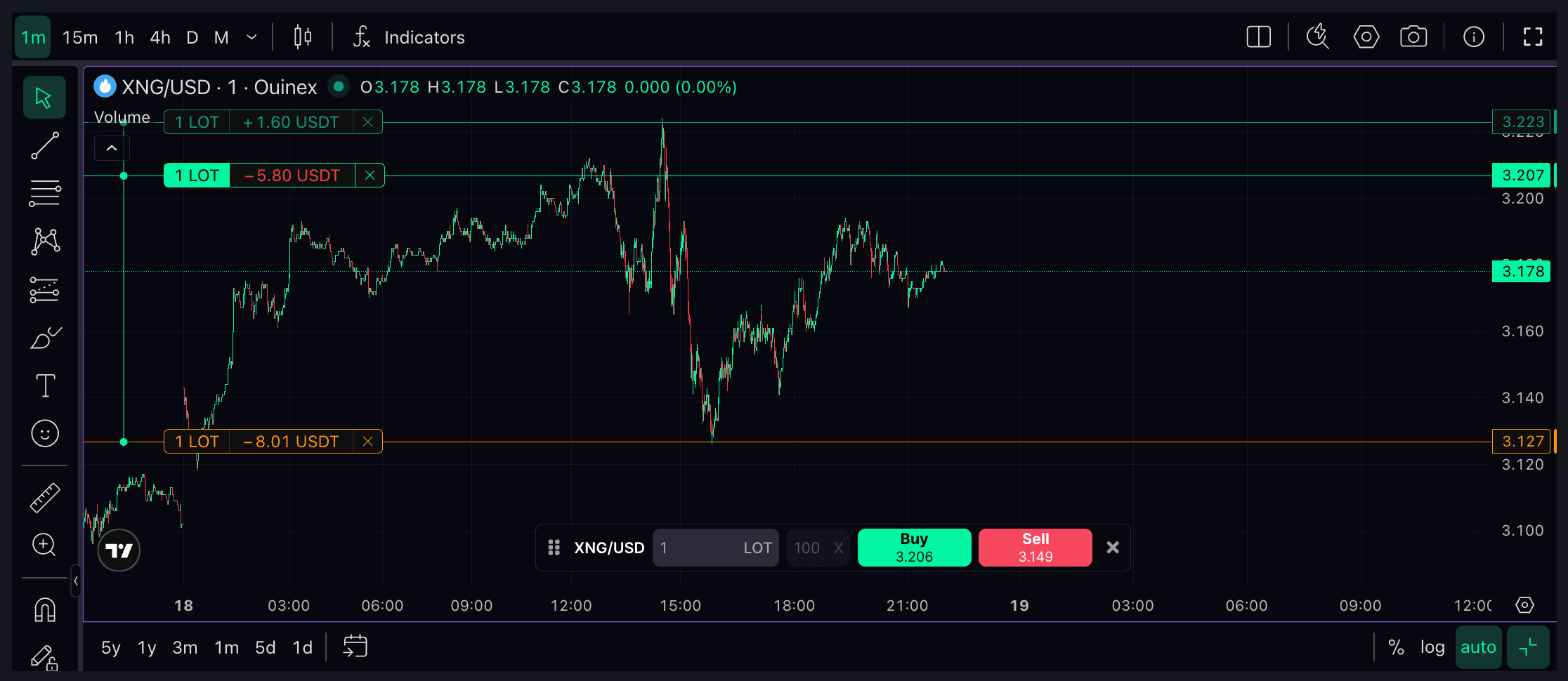
You also have a trading widget directly on the chart. Here, you can choose your leverage, set the amount, and buy or sell. Once You buy, You can see my position at the bottom.

Now, You can switch to full screen mode on a single chart.
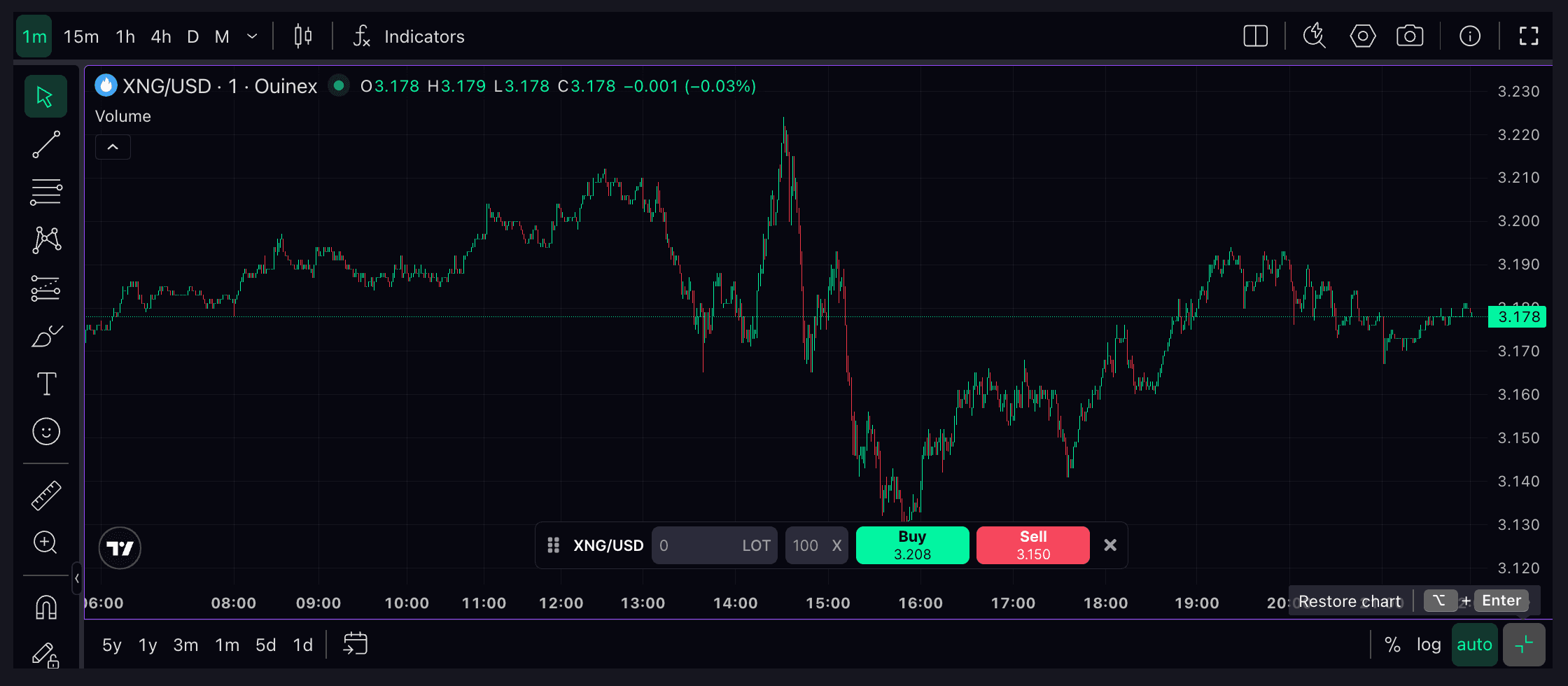
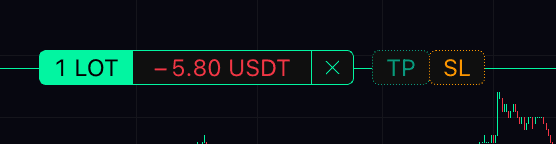
You can see your position and your quantity directly on the chart. You can also set your Stop Loss and Take Profit directly from the chart.

If we go to the other chart. For example, you want to place a sell order. Just click on the + Sell button.
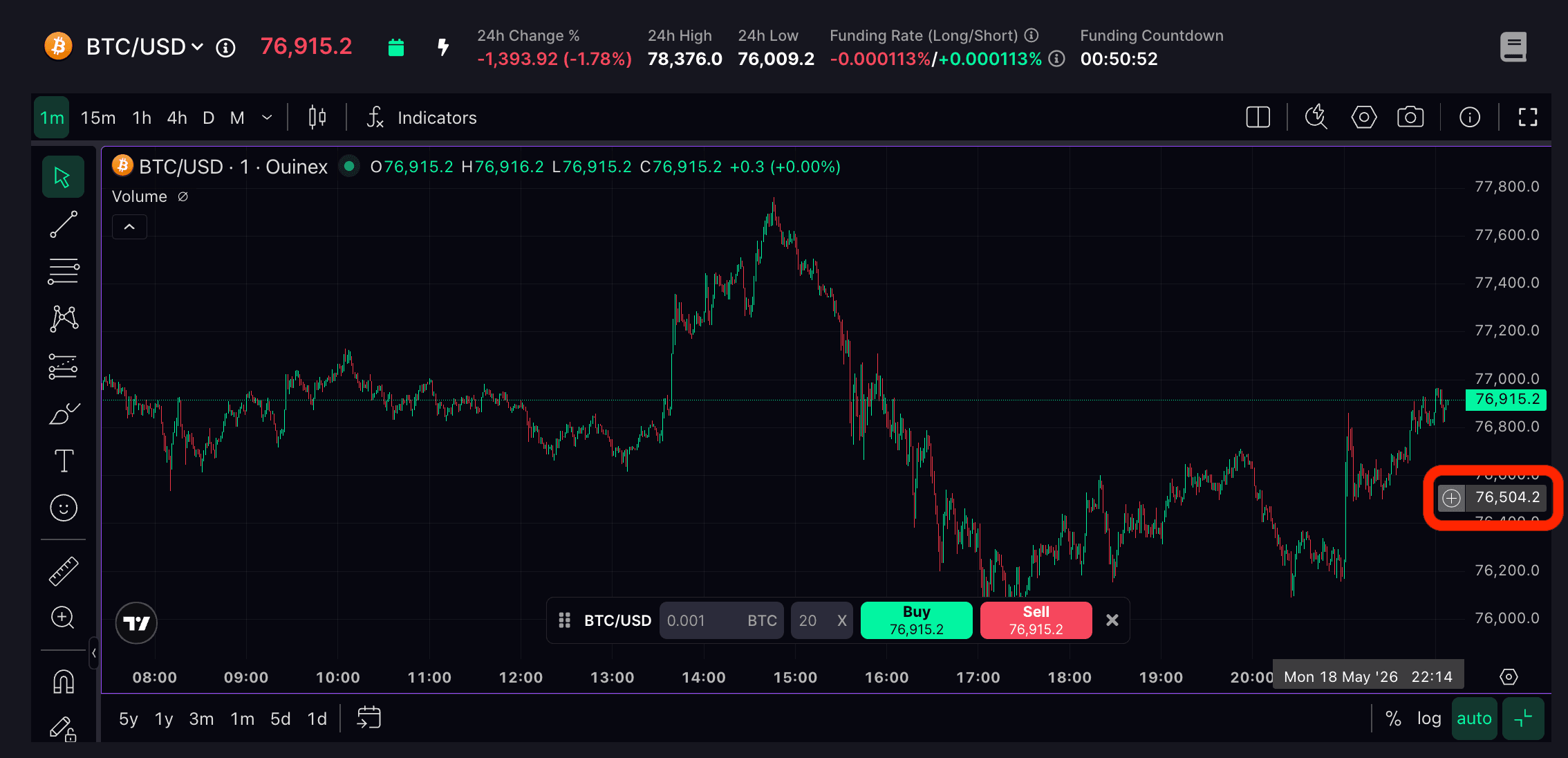
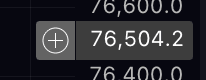
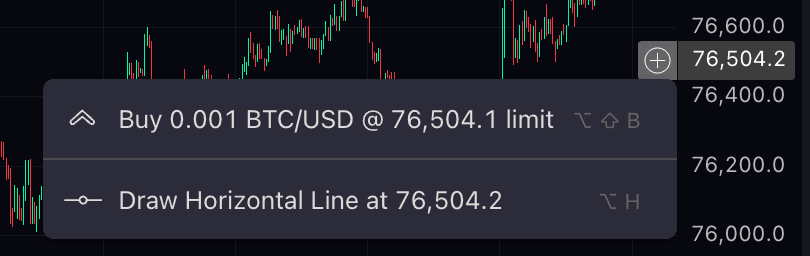
Enter the amount

And You can add a Stop Loss and a Take Profit on this pending order. You can also see it at the bottom.
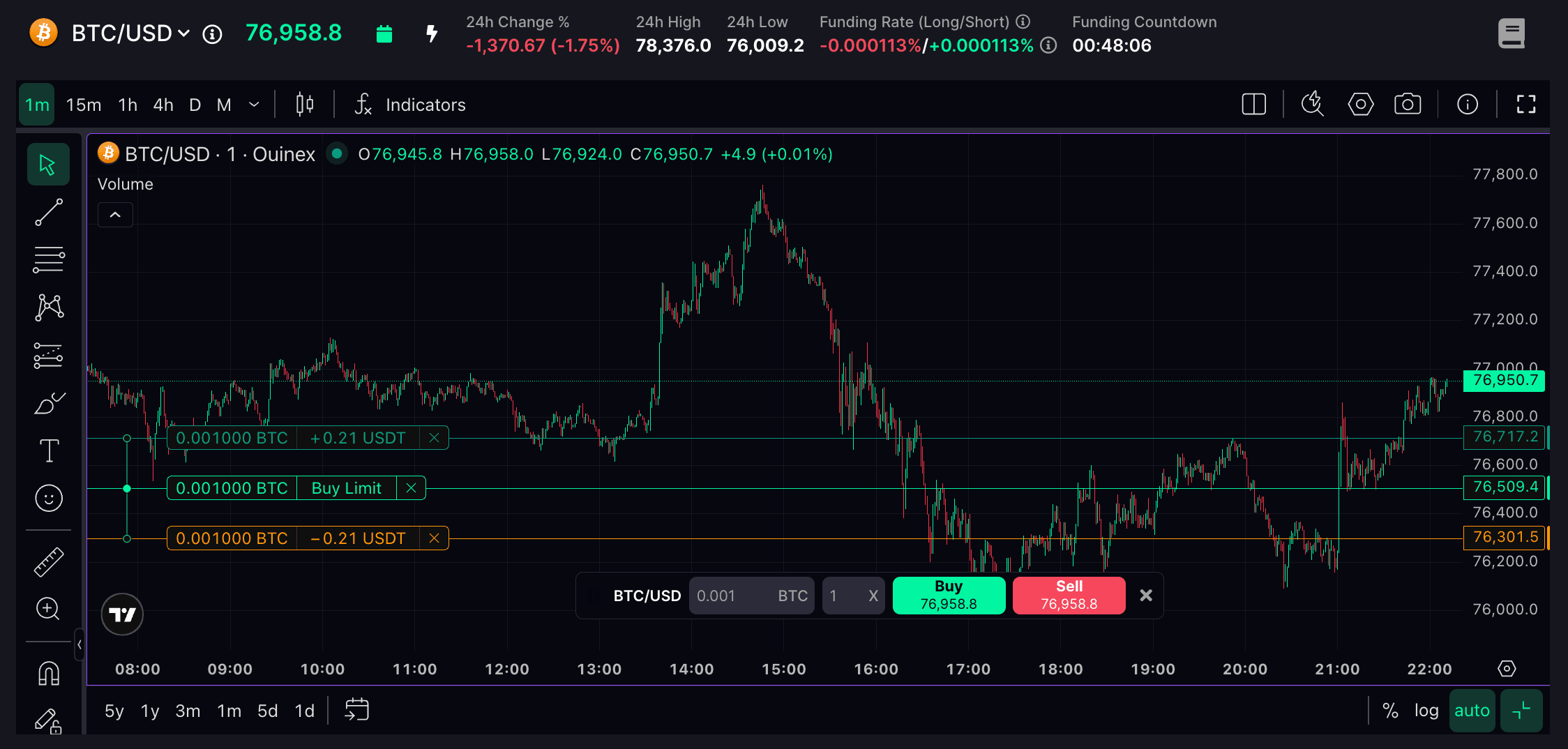
If the order is pending, You can change its quantity directly from the chart, and everything updates automatically.
On the side, you have access to all the TradingView indicators and drawing tools.
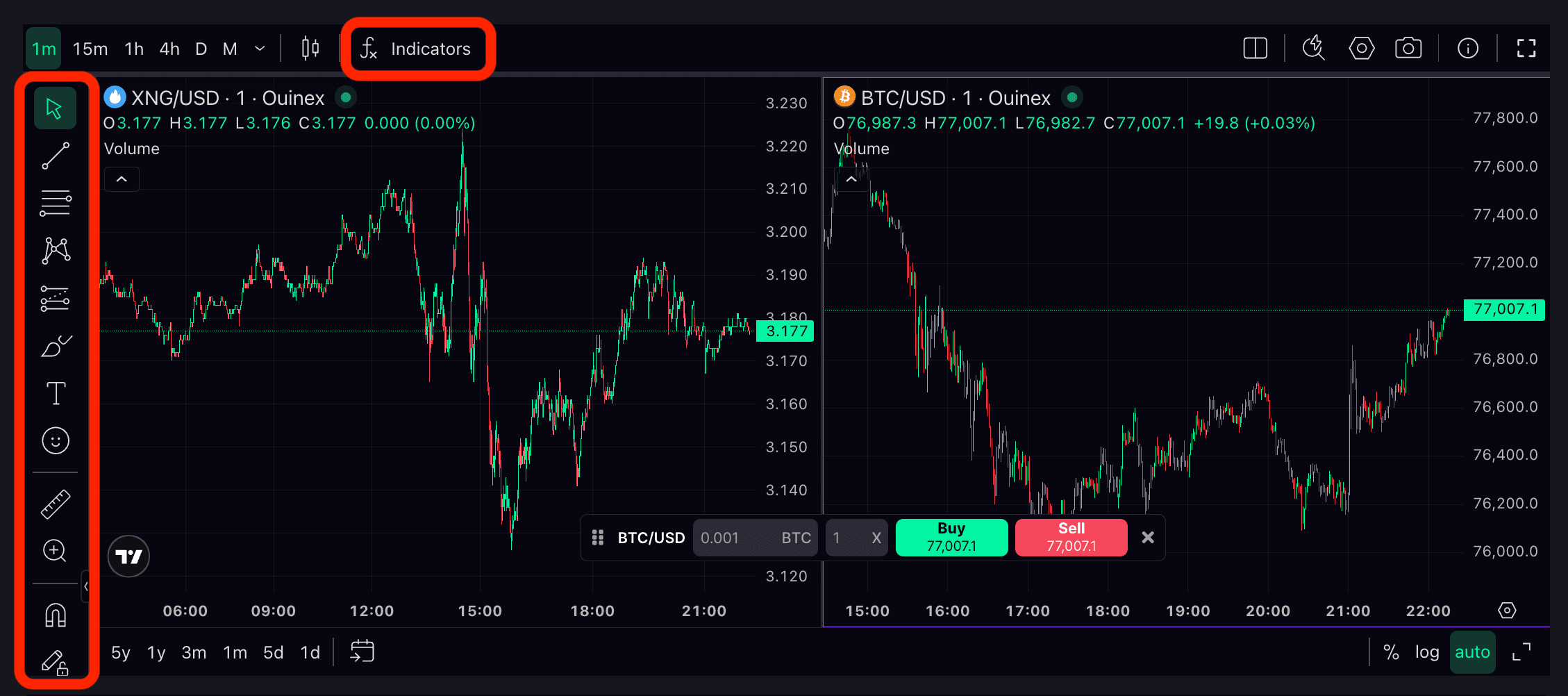
You can leave the page and come back later, everything is automatically saved.
You can also trade using only TradingView. You switch to full screen, and it becomes a complete trading platform.
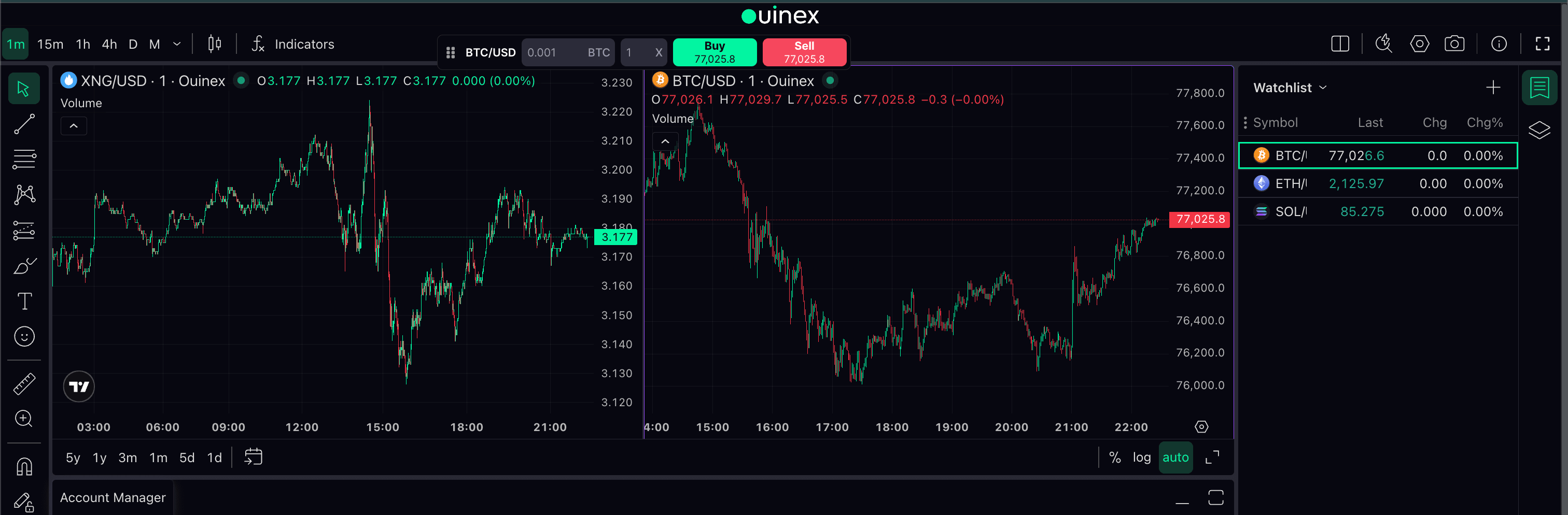
The Buy and Sell buttons are at the top, they can be moved, and they adapt to the chart you select.

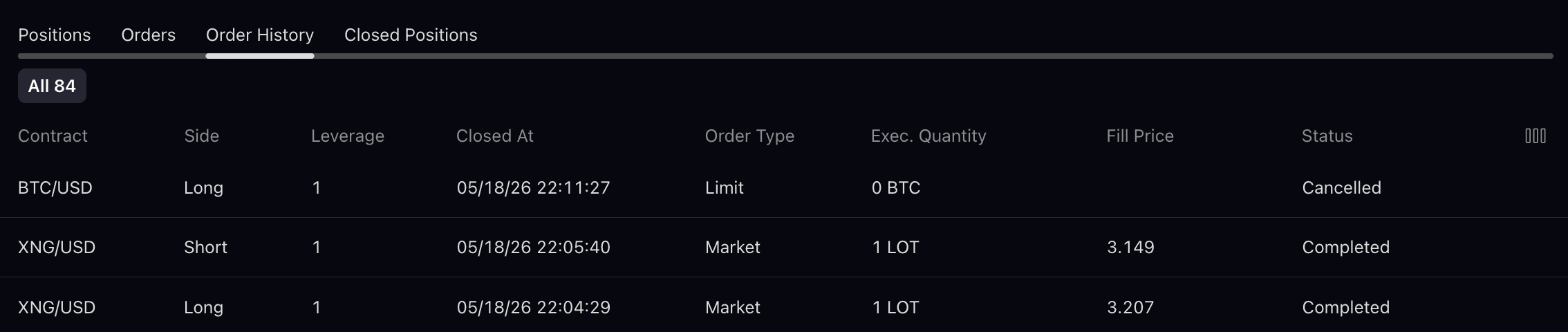
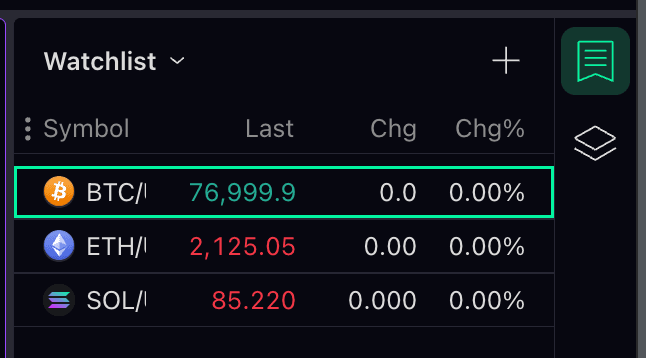
You can see all your positions inside TradingView, check your total PNL, and create your watchlists.
And that's it. Now you know how to trade directly from the chart thanks to the TradingView integration on Ouinex.